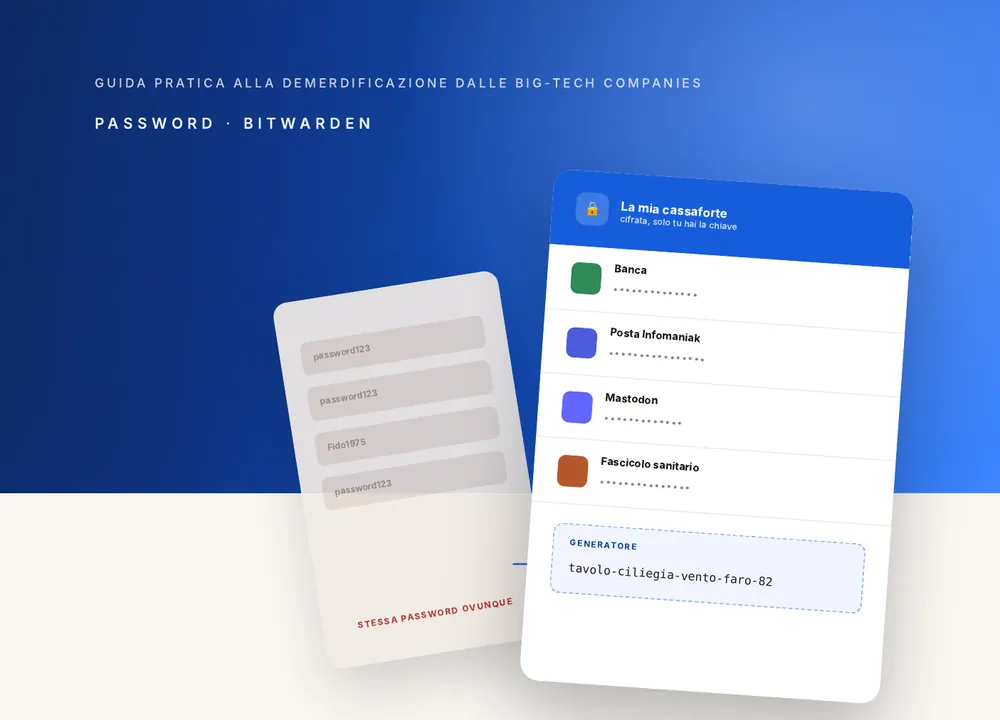
Why a password manager
We have dozens of accounts and nobody can remember dozens of long, different passwords, so we end up using the same one. It is the most dangerous mistake, because lists of stolen passwords circulate online and whoever has them tries them everywhere. You can check whether your address appears in a breach at haveibeenpwned.com. A manager remembers a different password for each site, fills it in for you, and leaves you only one to remember.
Why not Google’s
- All the keys in one place you don’t control: if your Google account is blocked or stolen, you lose or hand over every password at once.
- It ties you to Google: it works well only in Chrome and Android.
- Full encryption is optional: it has to be switched on separately, and few people do.
- The managers in Brave and Firefox also stay locked in the browser: an independent manager works everywhere and comes with you if you change browser.
Why Bitwarden
Born in 2015, it works on computers, phones and as an extension for every browser. The free plan has no limit on passwords or devices. Passwords are encrypted on your device before they leave: Bitwarden stores only unreadable data. The code is public and audited every year by independent firms, you can choose servers in Europe, and you can export everything whenever you want.
Creating the vault
- Create the account on
bitwarden.eu, the European site. The region is chosen now and cannot be changed later. - Choose the master password: four or five random words joined by hyphens, with a number (Bitwarden’s generator can create phrases like that). No famous quotes, family names or dates. If you’re helping a parent, they must choose it.
- Write it on the sheet together with the email, and reread it letter by letter.
- Turn on two-step login: install an authenticator app (for example Bitwarden Authenticator), then Settings → Security → Two-step login. Copy the recovery code onto the sheet.
- Install the browser extension from
bitwarden.com/downloadand the app on your phone, always with thebitwarden.euregion. Turn on unlock with PIN or fingerprint. - Autofill: on Android, Settings → Passwords & accounts → Preferred service → Bitwarden; on iPhone, Settings → General → AutoFill & Passwords.
Moving your passwords
- Export from Google: in Chrome type
chrome://password-manager/settings(or go topasswords.google.com) → Export passwords → Download file. Do the same in Brave or Firefox if you saved passwords there. - Import into Bitwarden:
vault.bitwarden.eu→ Tools → Import data → format “Chrome (csv)” (or “Firefox (csv)”). Check that the count matches and don’t import the same file twice. - Delete the .csv file immediately and empty the Bin: it contains all your passwords in plain text.
- Delete the passwords from Google (at the bottom of the Password Manager settings page) and turn off password saving in your browsers.
- Strengthen a little at a time: email first, then bank and public and health services, then social media and shops. Let Bitwarden generate the new passwords and save passkeys there too.
To be honest: the limits
- Bitwarden is a for-profit US company; since 2022 an investment fund (PSG) holds a minority stake.
- In 2026 it doubled the price of the Premium plan (19.80 dollars a year) and changed CEO, who confirmed that the free plan stays.
- If you forget the master password nobody can recover it, not even Bitwarden: that is what the sheet is for.
- If things got worse, exporting lets you move within minutes to KeePassXC (all on your computer) or Proton Pass (Swiss).
Apps often rename their menu items: if you can’t find one exactly as written, look for the closest match.
Checklist
Your ticks are saved only in this browser.
The full guide
The PDF, in Italian, contains every step, the images, the most common questions and the page of sources.